Building a Task Sequence
A Task Sequence is the ordered list of steps a deployment runs. Left navigation → Task Sequences → New.
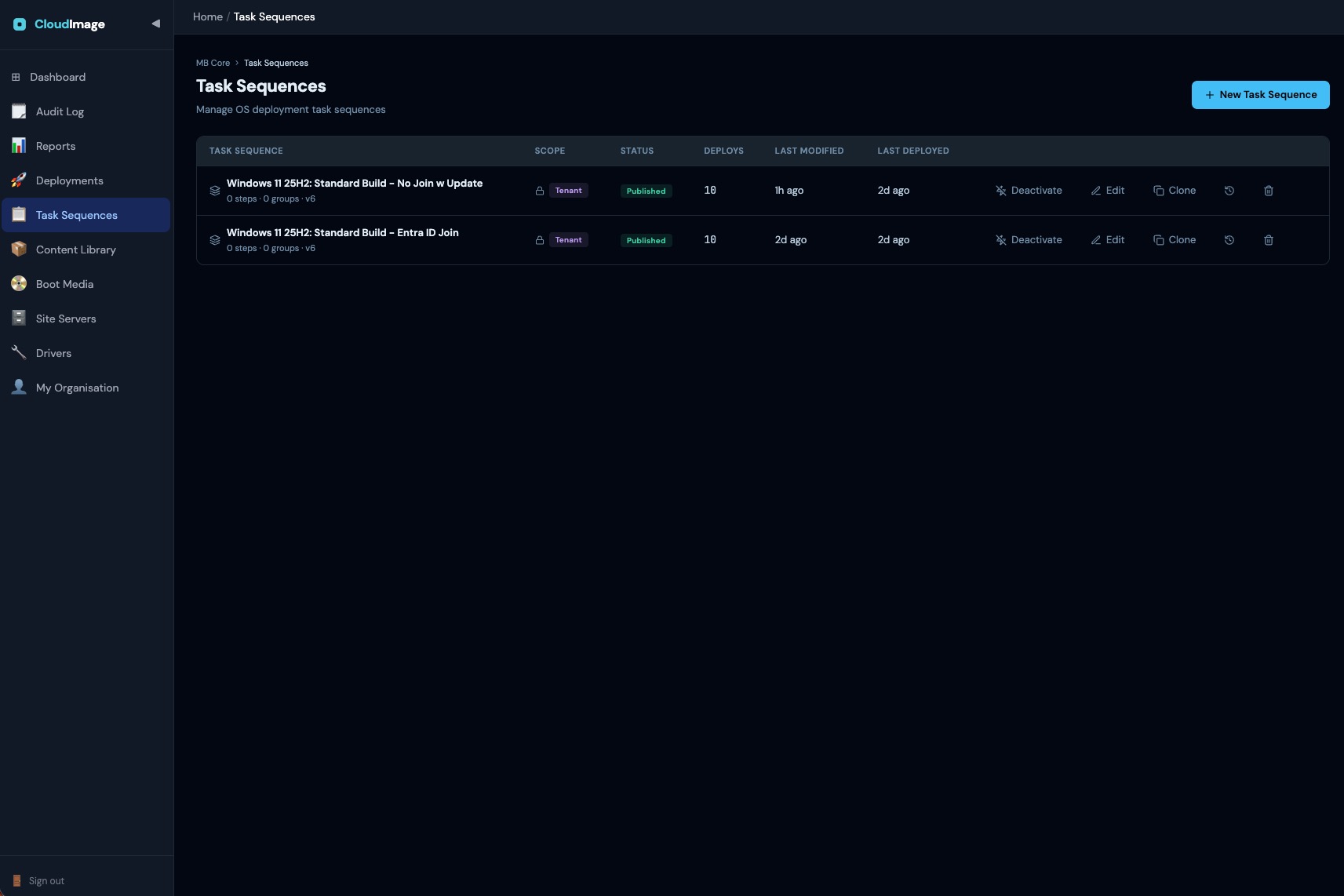
Anatomy
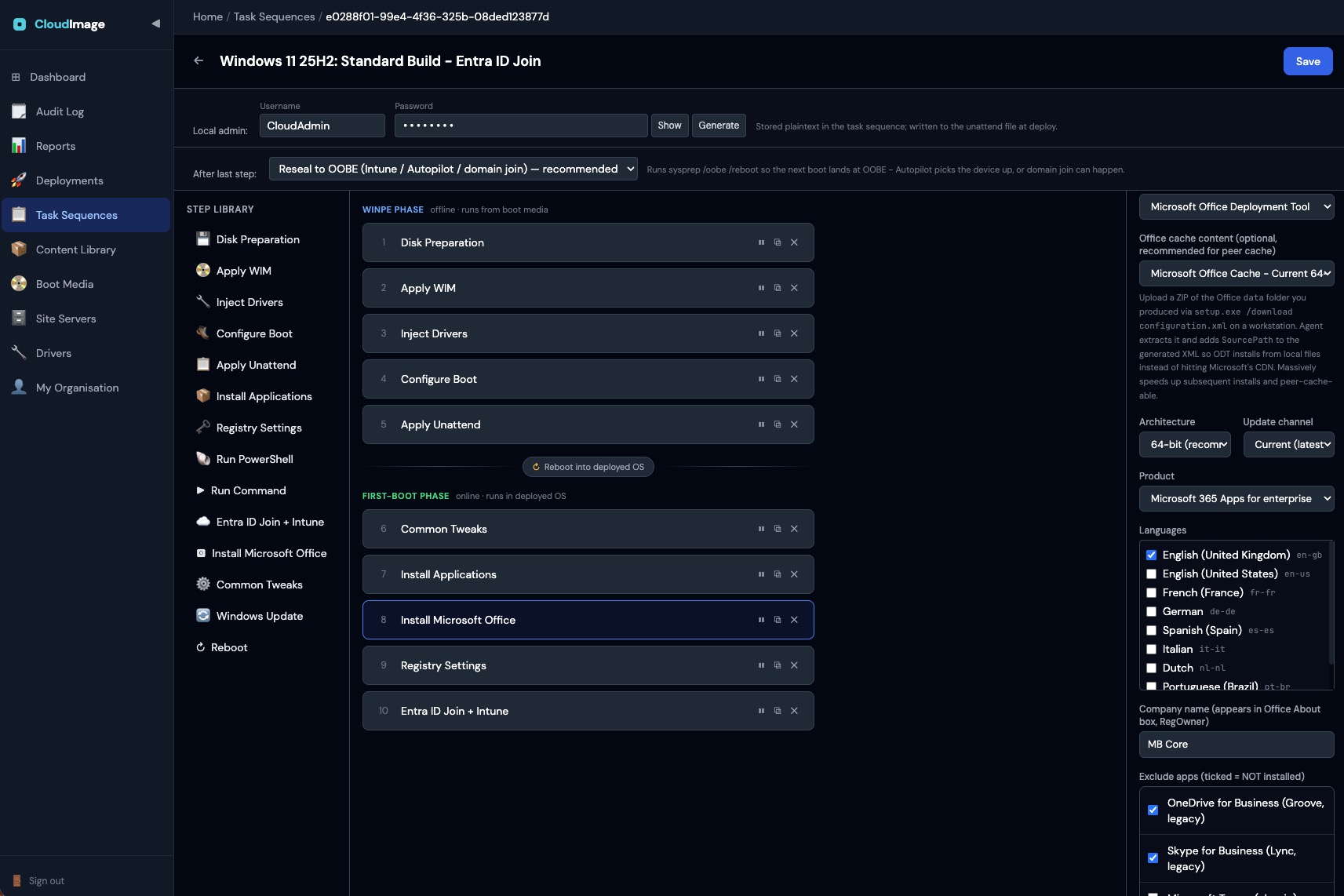
A typical sequence looks like this:
WinPE phase
- Disk Preparation - wipes and partitions the disk (GPT/UEFI).
- Apply WIM - downloads and applies your OS image.
- Inject Drivers - matches and injects driver packs (see Adding Driver Packs).
- Configure Boot - writes the boot files.
- Apply Unattend - applies the answer file (computer name, locale, and the local admin account used at first boot).
First-boot phase
- Common Tweaks - baseline OS tweaks / hardening.
- Install Applications - installs your selected apps.
- Install Microsoft Office - (optional) Office via the Office Deployment Tool.
- Registry Settings - applies registry keys.
- Entra ID Join + Intune - joins Entra ID and enrols in Intune (see Entra ID / Autopilot enrolment).
Sequence settings (set once per sequence)
- Local admin username / password - the account created on the device (default username
CloudAdmin). Set a password - the first-boot progress screen signs in with this account, so without it there's no first-boot UI. - End action - what the device does after the WinPE phase:
- OOBE (default) - reboots to the Windows out-of-box experience (required for Autopilot).
- Reboot - restarts to the local-admin sign-in.
- Sign off - sign out only (for testing).
Sequences are versioned - editing creates a new version. A sequence's deploy count only increases on successful deployments.
Step reference
| Step | Phase | What it does | Key options |
|---|---|---|---|
| Disk Preparation | WinPE | Wipes and partitions the target disk. | Disk number (default 0), GPT/UEFI or MBR/BIOS, wipe on/off |
| Apply WIM | WinPE | Applies the chosen OS image to the disk. | OS image, image index |
| Inject Drivers | WinPE | Injects packs matching the device, or the specific packs you tick. | Driver packs (empty = auto-match) |
| Configure Boot | WinPE | Writes the boot files / BCD so the new OS boots. | Boot drive, UEFI/BIOS |
| Apply Unattend | WinPE | Generates the unattend answer file. | Uses sequence-level local admin username/password |
| Common Tweaks | First-boot | Applies a checklist of Windows tweaks / hardening (see below). | ~16 toggles |
| Install Applications | First-boot | Downloads and silently installs the selected apps. | Apps from Content Library |
| Install Microsoft Office | First-boot | Installs Microsoft 365 / Office via the Office Deployment Tool. | Edition, channel, product, languages, exclusions, shared-computer licensing |
| Registry Settings | First-boot | Applies a group of registry entries. | Hive, key, name, type, value |
| Run PowerShell | First-boot | Runs a PowerShell script (inline or uploaded). | Timeout, success codes, run as SYSTEM or user |
| Run Command | First-boot | Runs a single command line. | Command, timeout, success codes |
| Windows Update | First-boot | Runs Windows Update to apply quality updates and pull any missing drivers Windows can source from the catalog. Registers Microsoft Update so driver scans return results, runs under a time limit so it can't hang first boot, and reports a clear pass/fail with the drivers it installed (validated on Surface). Optional but recommended when no matching driver pack exists for the model. | Include drivers on/off, include quality updates on/off, timeout |
| Entra ID Join + Intune | First-boot | Joins Entra ID / enrols in Intune (Autopilot or PPKG). | Method, group tag, assigned user, PPKG |
| Reboot | Either | A real restart during first-boot (WinPE reboot happens automatically anyway). | Delay, resume-after-reboot |
Variable tokens
Available in Run PowerShell and Run Command steps: {computerName}, {tenantName}, {deploymentId}.
Common Tweaks toggles
The Common Tweaks step exposes on/off switches, including: show This PC in Explorer, show file extensions, show hidden files, dark mode, remove consumer bloat (Candy Crush etc.), disable Widgets, disable Teams Chat, disable Recall, disable Copilot, disable Cortana, disable lock-screen ads, disable News & Interests, disable Edge first-run, enable RDP, never sleep on AC power, and force TLS 1.2.
Recommended order: Windows Update then Reboot before Entra ID Join
The Windows Update step is a first-boot step - it runs in the deployed Windows after the WinPE phase reboots the device. Use it to apply the latest quality updates and let Windows Update source any drivers your driver packs didn't cover (this is the same fallback that happens automatically if Inject Drivers finds no match - the Windows Update step just makes it explicit and lets you gate the deployment on it).
Because driver and cumulative updates can require a restart before the OS is in its final state, we recommend this order at the end of the first-boot phase:
- Windows Update - apply updates and pull missing drivers.
- Reboot - a real restart so any pending driver / update installs finish cleanly and the machine comes up on the current stack.
- Entra ID Join + Intune - now the device joins Entra ID / enrols in Intune on a fully-patched, freshly-rebooted Windows, which avoids Autopilot / MDM registration racing with a pending Windows Update restart.
Skip the Windows Update step only when you're deploying against a very fresh OS image or you specifically want a "clean" baseline with no post-image patching.